Payout Guide
Learn how to manage your event revenue, transfer funds, and withdraw money to your bank account
How Payouts Work
When users purchase tickets of your events, the revenue is automatically tracked in your account. Once your live event is finished, you can transfer the funds to your payout wallet and then withdraw them to your bank account.
💡 Important: You can only transfer revenue after your live event has finished.
View Pending Transactions
When users purchase tickets for your events, the transactions automatically appear in the Transfer tab. Here's how to access them:
- Navigate to Musicbuff Studio (Admin App)
- Go to the Transfer tab
- You'll see the Pending Transactions Summary
Pending Transactions Summary
The summary displays the following information for each event:
- Event Name - The name of your event
- Purchase Count - The number of tickets
- Payout Amount - The total revenue available for transfer
- Process Transaction - Button to initiate the transfer

View More Transaction Details
To see all the related details of an event transaction:
- Click on View Details for any event
- You'll see comprehensive information including:
- All purchase transactions
- Individual buyer information
- Transaction dates and times
- Payment methods used
- Total revenue breakdown
⚠️ Important: Is your live event finished? You must wait until your live event is completed before you can transfer the amount to your payout wallet.

Process Transaction
Once your event is finished and you're ready to transfer the revenue:
- Click the Process Transaction button for the event you want to transfer
- A confirmation dialog will appear asking: "Do you confirm the transfer?"
- Review the message: "This will transfer the revenue to the user."
- Click Confirm to proceed or Cancel to abort
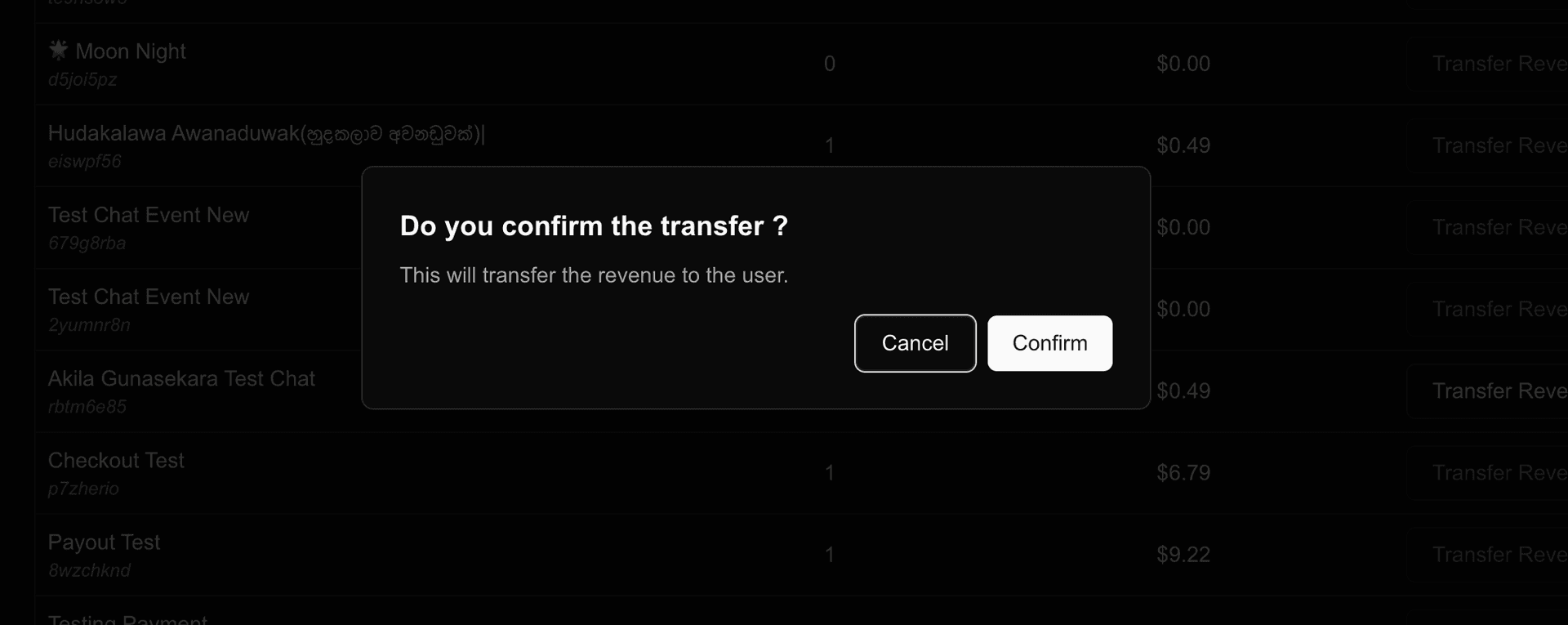
✔️After confirming, the transfer will be processed and the funds will be moved to your payout wallet.
Payment Successful
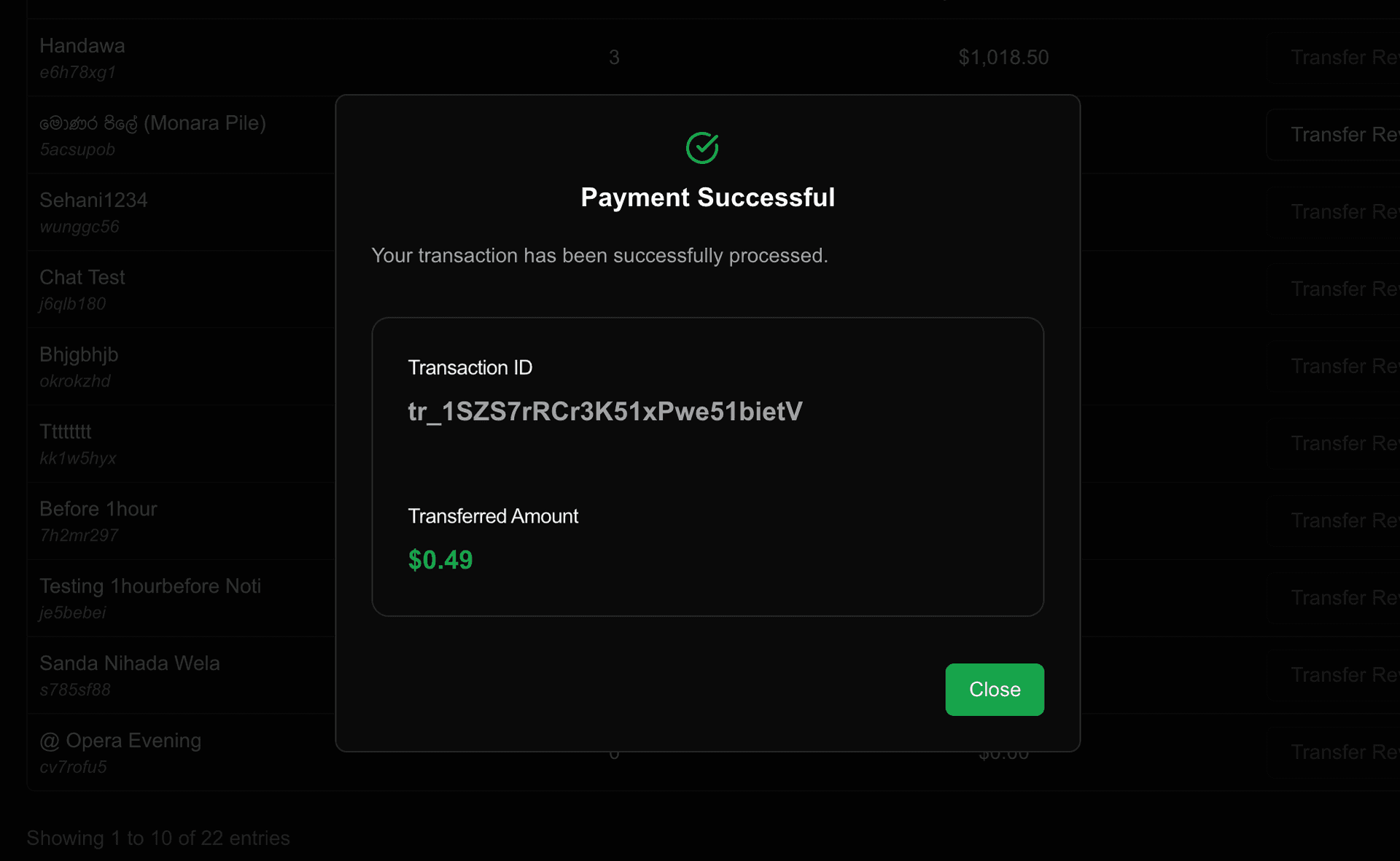
After a successful transfer, you'll see a confirmation screen with:
- Payment Successful - Confirmation message
- Transaction ID - A unique identifier for your transaction (e.g., tr_1SZQ1tRCr3K51xPwtgjF0f6m)
- Transferred Amount - The total amount transferred to your payout wallet
Withdraw to Bank Account
After the transaction is complete, the funds are available in your payout wallet. To withdraw to your bank account:
- Navigate to your Payout Wallet section
- Check your Account Balance - this shows the total amount available for withdrawal
- Enter the Withdraw Amount you want to transfer to your bank account
- Click the Payout button to initiate the withdrawal
- The funds will be transferred to your linked bank account
💡 Note: Make sure your bank account is properly linked and verified in your payout settings before initiating a withdrawal.
View Payout History
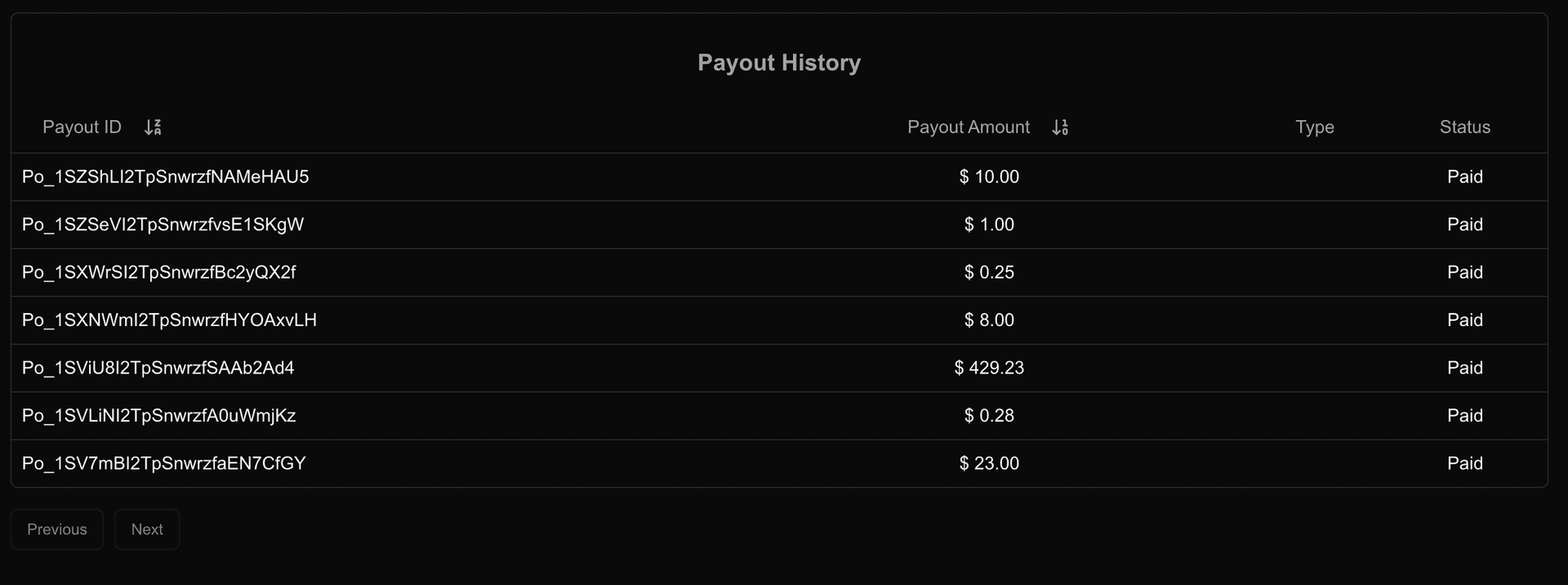
You can view all your past payouts in the Payout History section
- All completed withdrawals
- Status of each payout (completed, pending, failed)
- Payout IDs for reference
🔒Important Notes
Event Completion: You can only transfer revenue after your live event has finished. This ensures all transactions are complete.
Processing Time: Transfers to your payout wallet are usually instant, but bank withdrawals may take 3-5 business days.
Minimum Withdrawal: Check your payout settings for any minimum withdrawal amounts that may apply.
Common Issues
Can't Process Transaction?
- Ensure your live event has finished
- Check that there are pending transactions available
- Verify your payout account is activated
Withdrawal Not Working?
- Verify your bank account is linked and verified
- Check that you have sufficient balance in your payout wallet
- Contact support if the issue persists
Quick Tips
- Always wait until your event is finished before processing transactions
- Keep your transaction IDs for your records
- Regularly check your payout history to track all transactions
- Ensure your bank account details are up to date