How to Stream with OBS (or Any Streaming Platform)
Connect OBS Studio, Restream, or any RTMP-compatible platform to Musicbuff and start broadcasting your live events
Before You Start
- Download and install OBS Studio (or any RTMP-supported streaming tool) Examples: Restream, Streamlabs, Prism Live.
- Have your Musicbuff Studio account ready
- Navigate to musicbuff.io
- Log in (If you don't have an account → Sign Up first)
- After logging in, you will be automatically redirected to the dashboard
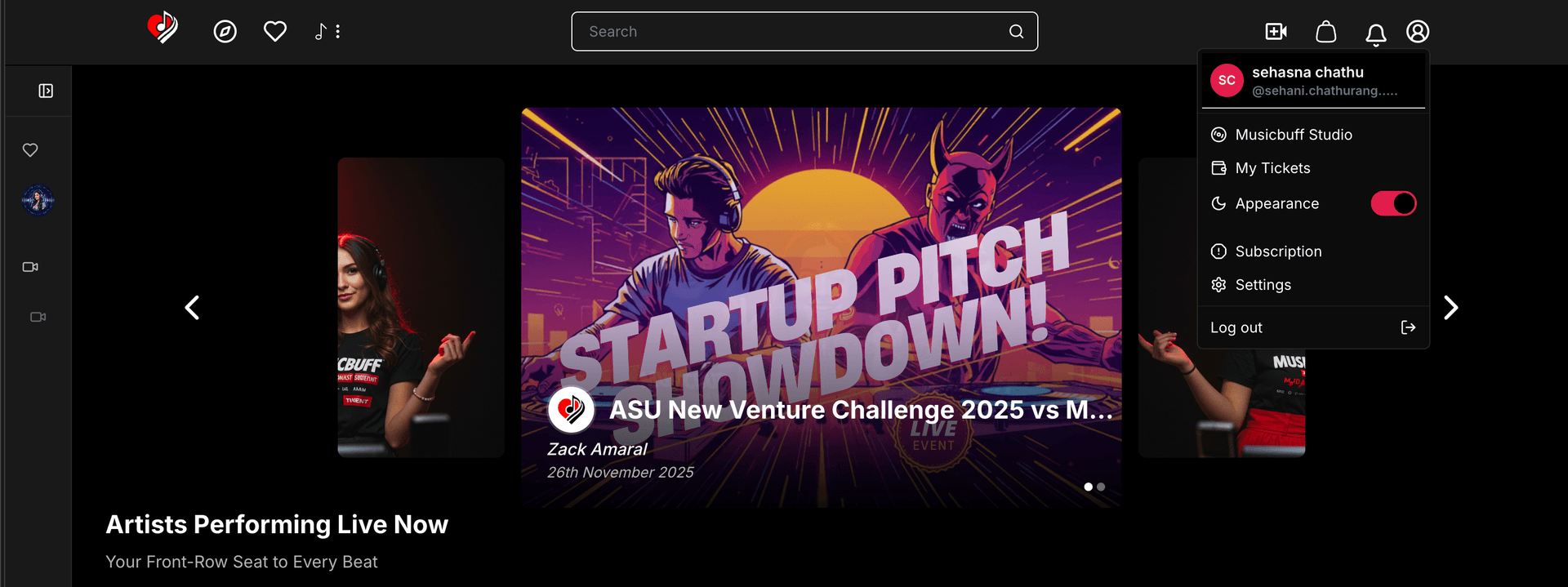
- Click on your profile icon (top-left corner)
- Select Musicbuff Studio
- You will be redirected to the Admin App
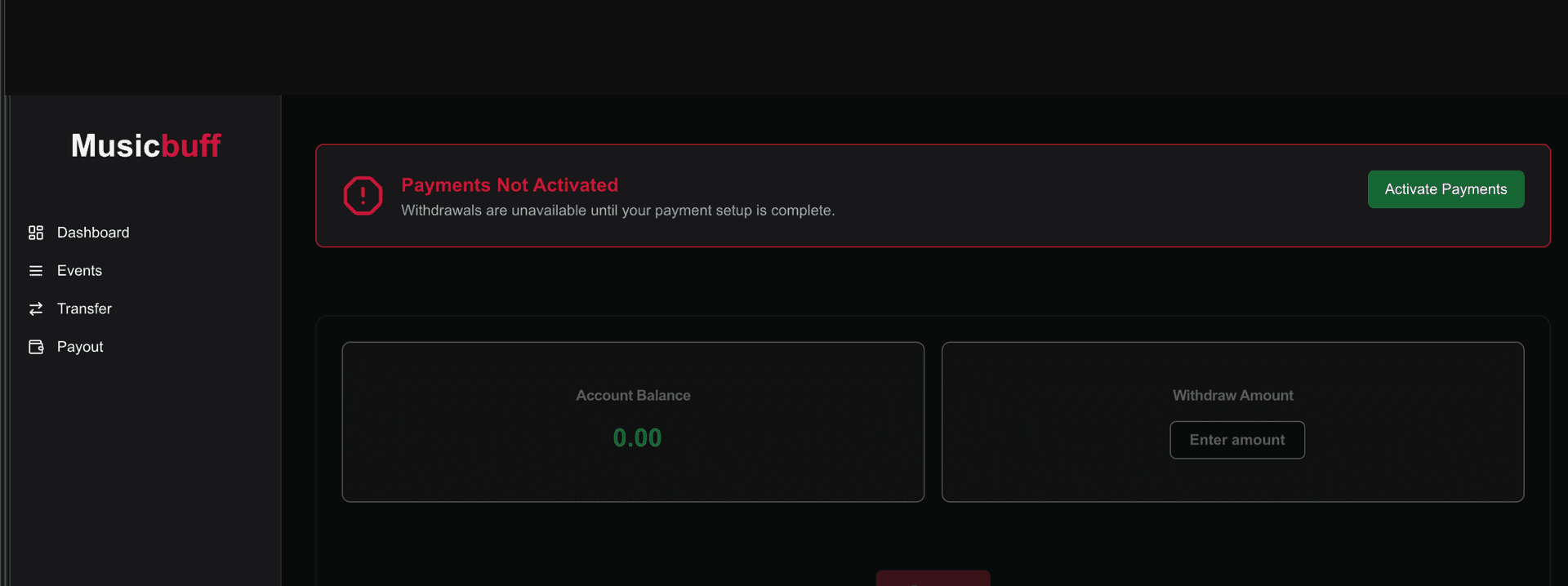
- Go to Payouts → Activate your payouts in the Musicbuff Studio
⚠️ Important: You cannot create an event unless payout is completed.
Steps:
- Navigate to the Admin App
- Open the right sidebar → Payout
- Click Activate Payout
- Fill in your required details
- If setup is fully completed, you will see "Payment Activated"
- If not, it will show "Continue Activation" → click and complete the remaining steps
1
Create Your Event
⚠️ Important: Only after payout is complete — otherwise event creation is blocked.
- Log in to the Musicbuff Admin Dashboard
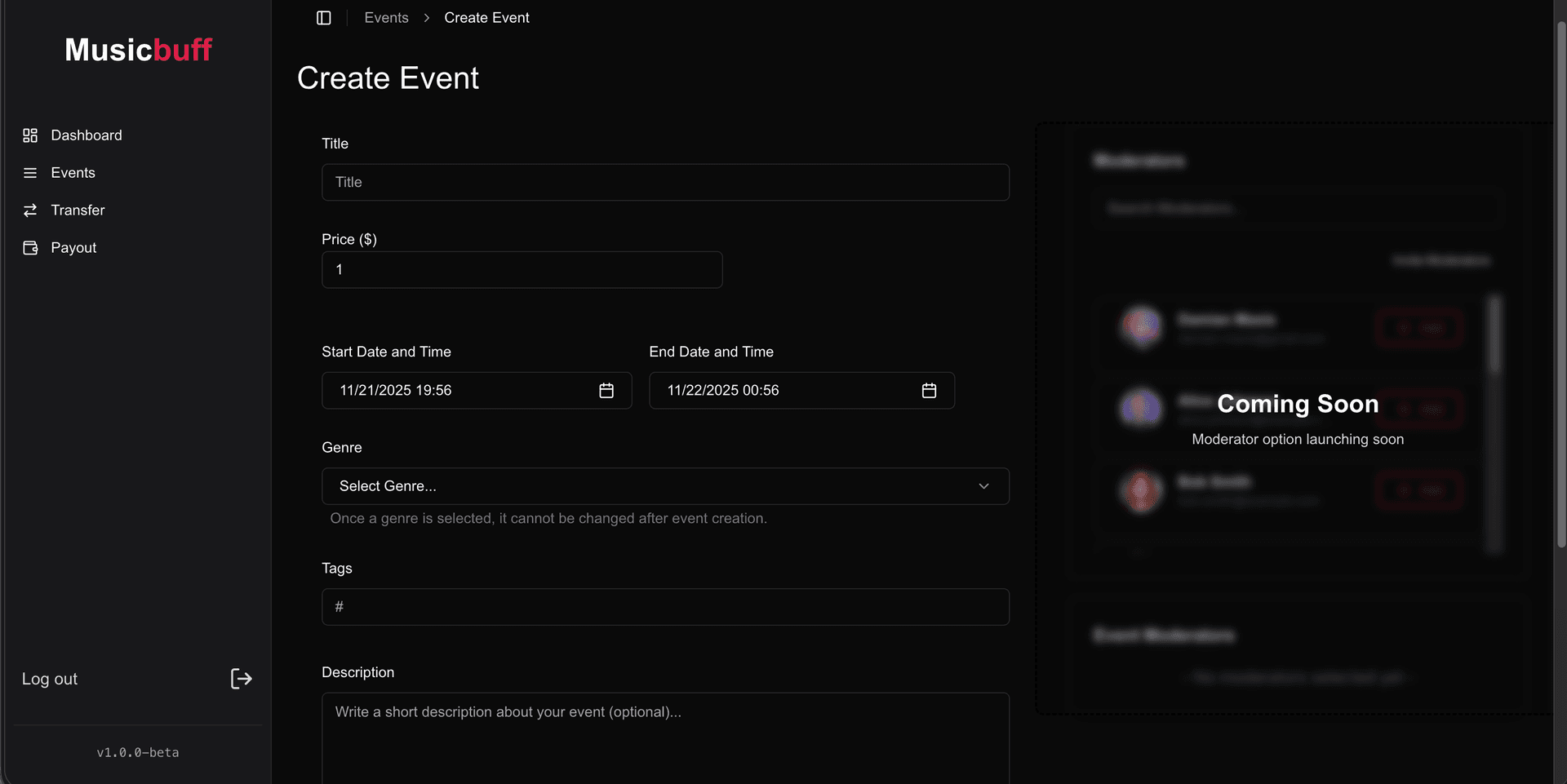
- Go to Events → Create Event
- Fill in the event details
- Click Create Event
✔️After creating an event, it will appear in your Event List.
2
Get Your Streaming Credentials
- Go to Events → Event List
- Click your event
- Find the Streaming Details section
- Copy your Ingest Endpoint and Stream Key
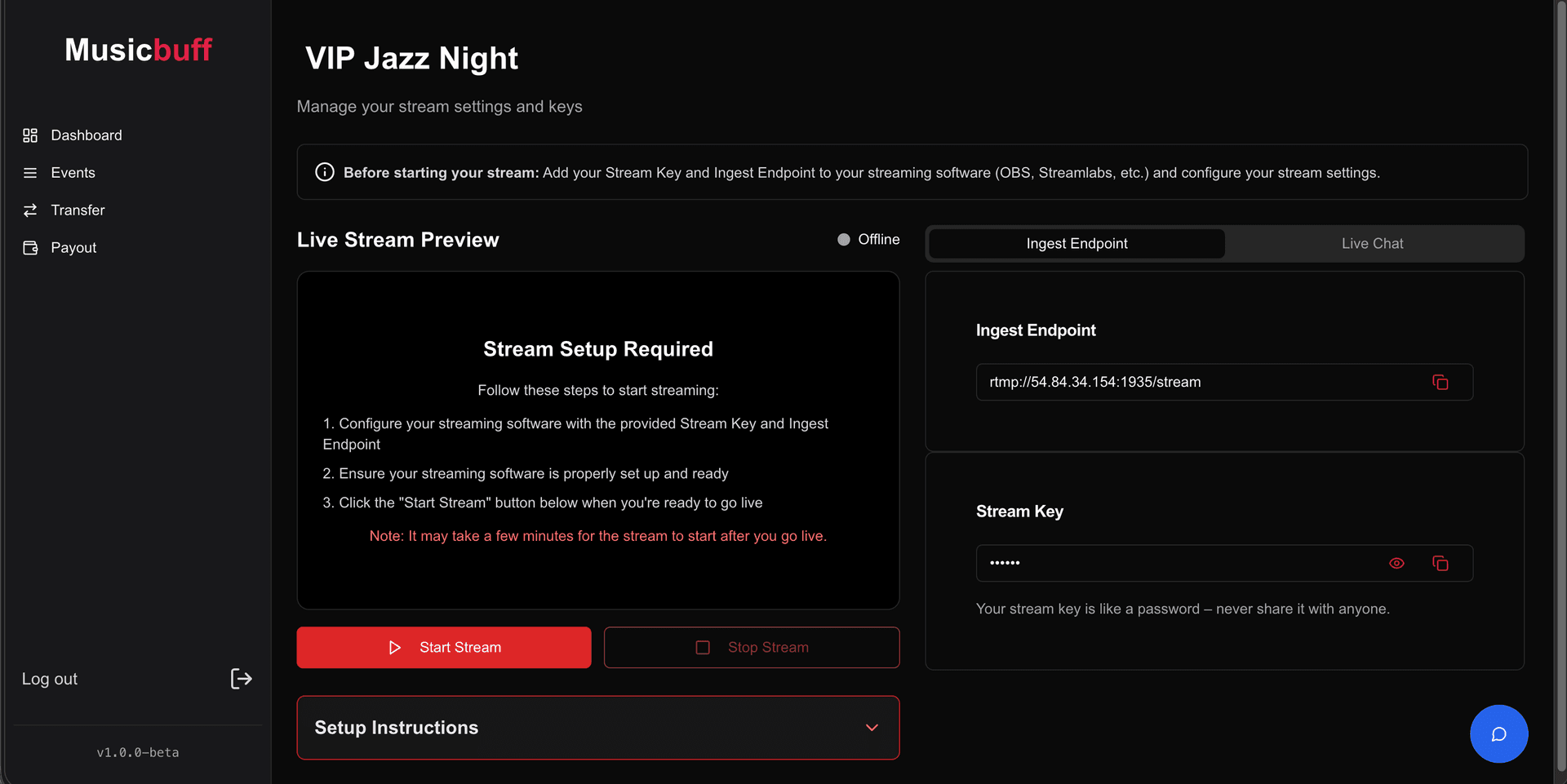
⚠️ Keep your Stream Key private! Anyone with this key can stream to your event.
3
Connect Your Streaming Platform
OBS Example Setup
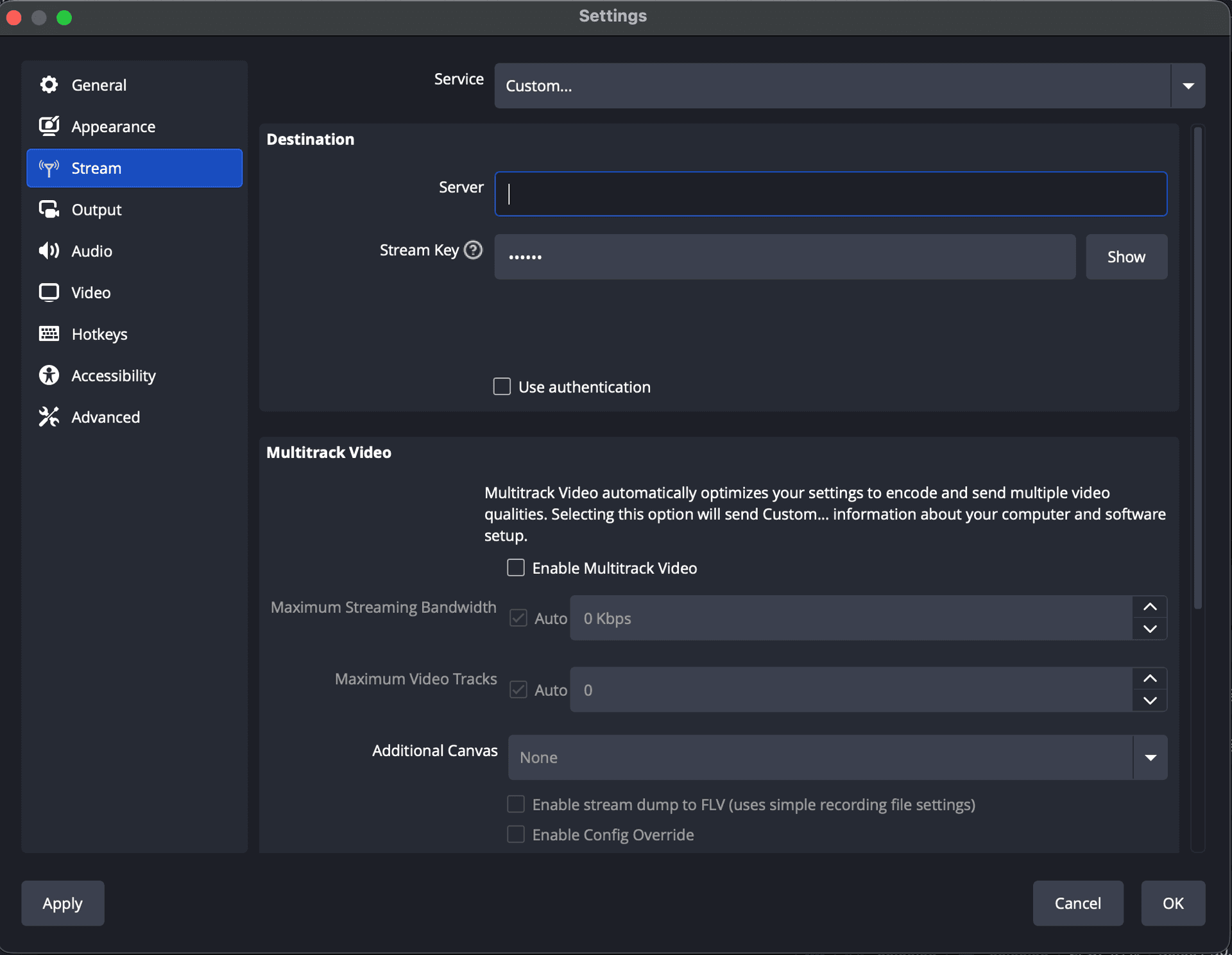
Stream Settings
- Open OBS → Click Settings
- Go to Stream
- Set Service → Custom…
- Paste your Ingest Endpoint in Server
- Paste your Stream Key
Recommended Settings
Video
- Resolution: 1920x1080
- FPS: 30
Output
- Bitrate: 3000–6000 Kbps
- Encoder: x264
4
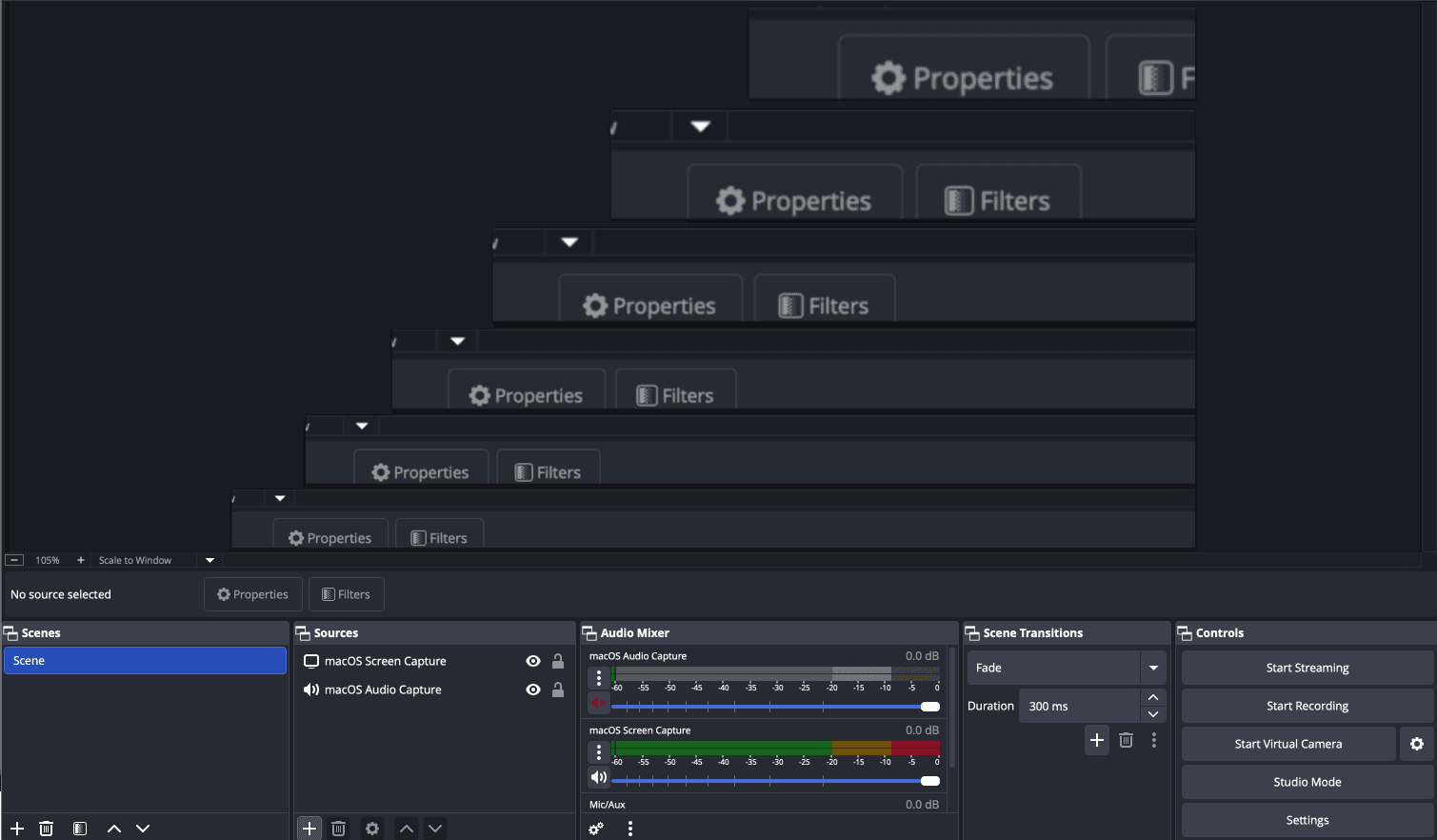
Set Up Your Scene
- Click + in the Scenes panel
- Add sources:
- Camera
- Microphone
- Overlays
- Arrange your layout
5
Go Live!
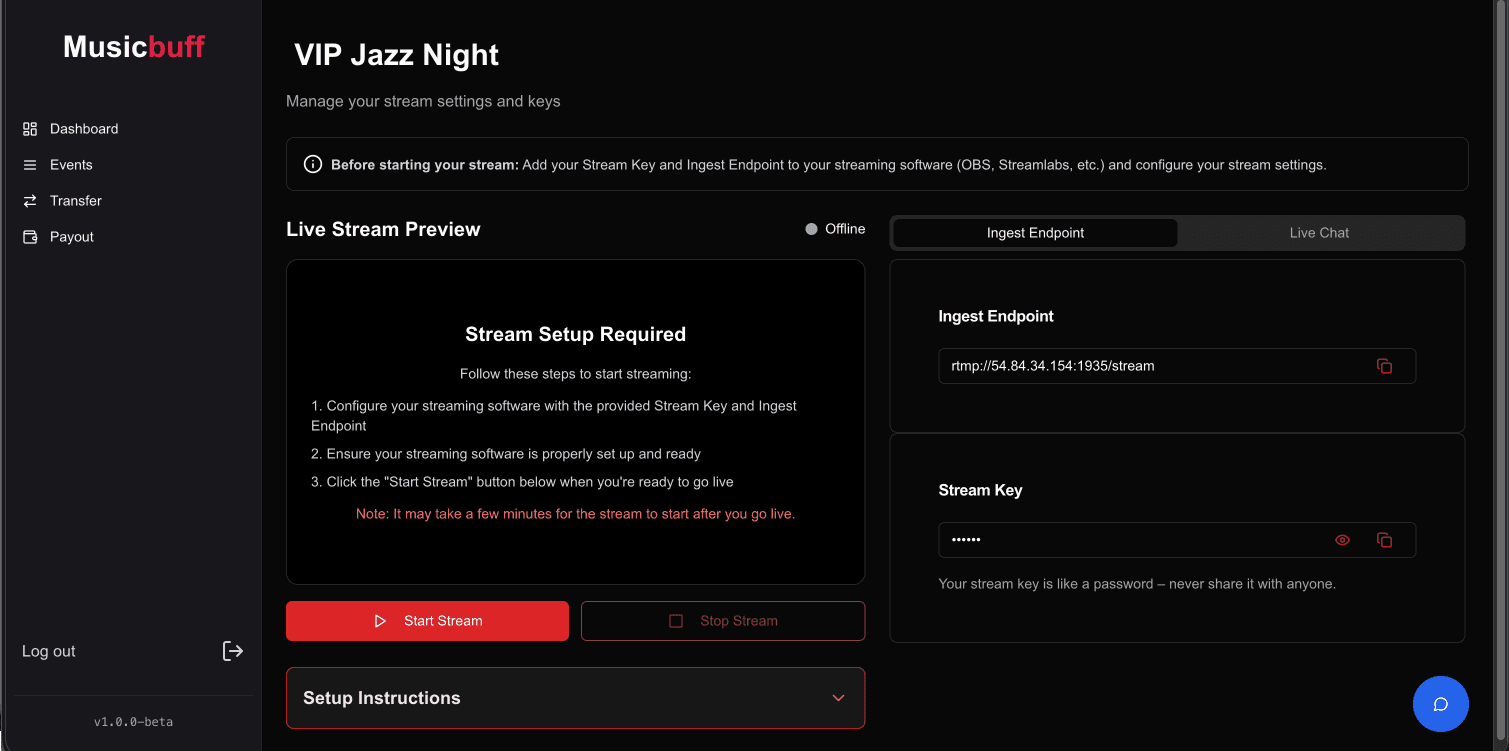
- Click on Go Live button in event list.
- Click Start Stream button in broadcast page.
- Click Start Streaming in your streaming app
- Your live stream will automatically appear on Musicbuff
- Monitor stats through your streaming tool
- Click Stop Streaming to end the broadcast page and streaming app.
🔒Important Note
You cannot watch your own livestream from the platform side when you are in live with same Device or Connected Monitors.
This is because DRM (Digital Rights Management) is enabled to protect your content.
This is normal and expected.
Common Issues
Stream Won't Connect?
- Check if your stream key is correct
- Verify the ingest endpoint URL
- Test your internet upload speed (5 Mbps+ upload recommended)
Poor Quality?
- Lower bitrate to 2500–3000 Kbps
- Reduce resolution to 1280x720
- Use a wired internet connection
Quick Tips
- Test your stream 24 hours before the event
- Start streaming 5–10 minutes early
- Keep your stream key private
- Monitor streaming stats
- Use wired internet for stability